


Email Setup: Thunderbird
Setup Email on Thunderbird (IMAP)
Thunderbird is a free, open-source email client with excellent IMAP support.
Large mailboxes: Depending on your mailbox size and internet speed, the initial sync can take anywhere from a few hours to a few days.
If your domain supports Autoconfig, Thunderbird can discover most settings automatically.
Getting Started
- Open Thunderbird.
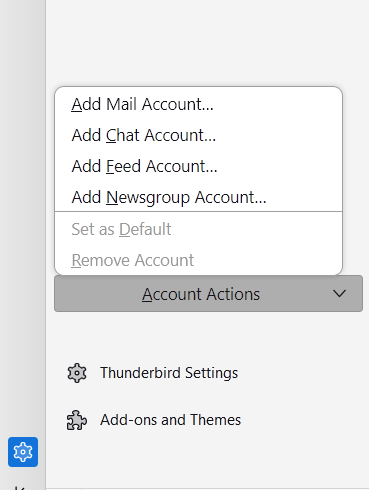
- Click Account Actions in the lower-left corner of the account pane.
- Select Add Mail Account...
Option 1: Automatic Configuration
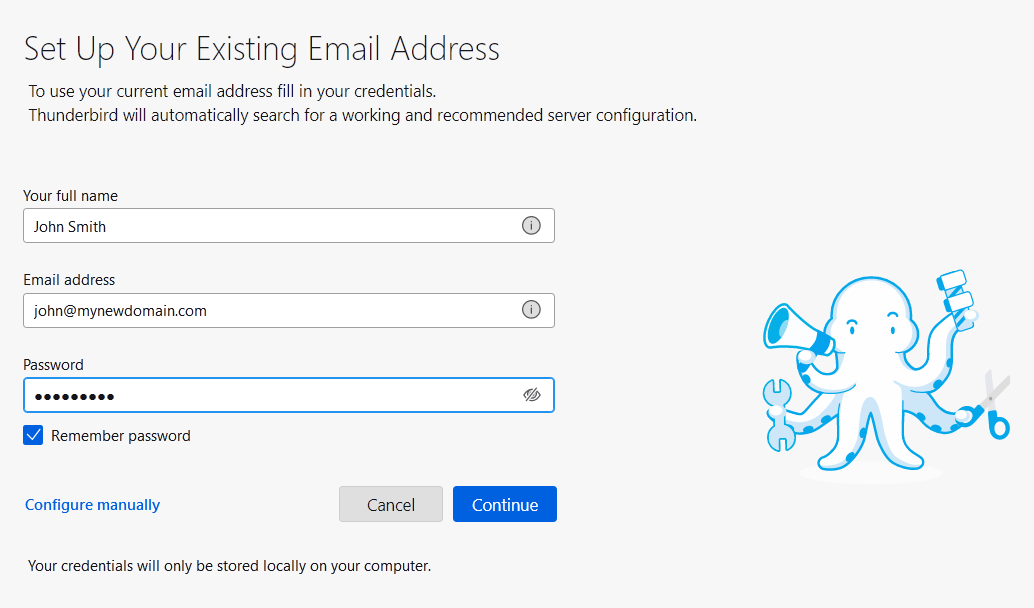
- Enter your full name, email address, and password.
- Leave Remember password checked.
- Click Continue.
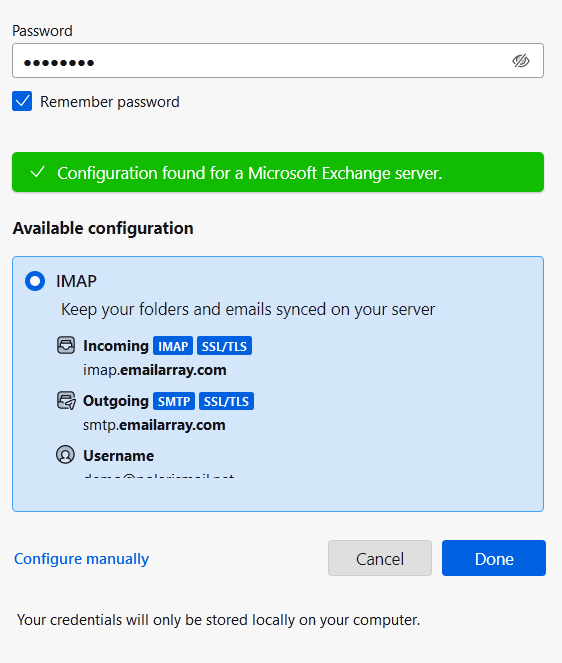
- When Thunderbird finds the server settings, confirm IMAP is selected.
- Click Done.
Option 2: Manual Configuration
- Enter your name, email address, and password.
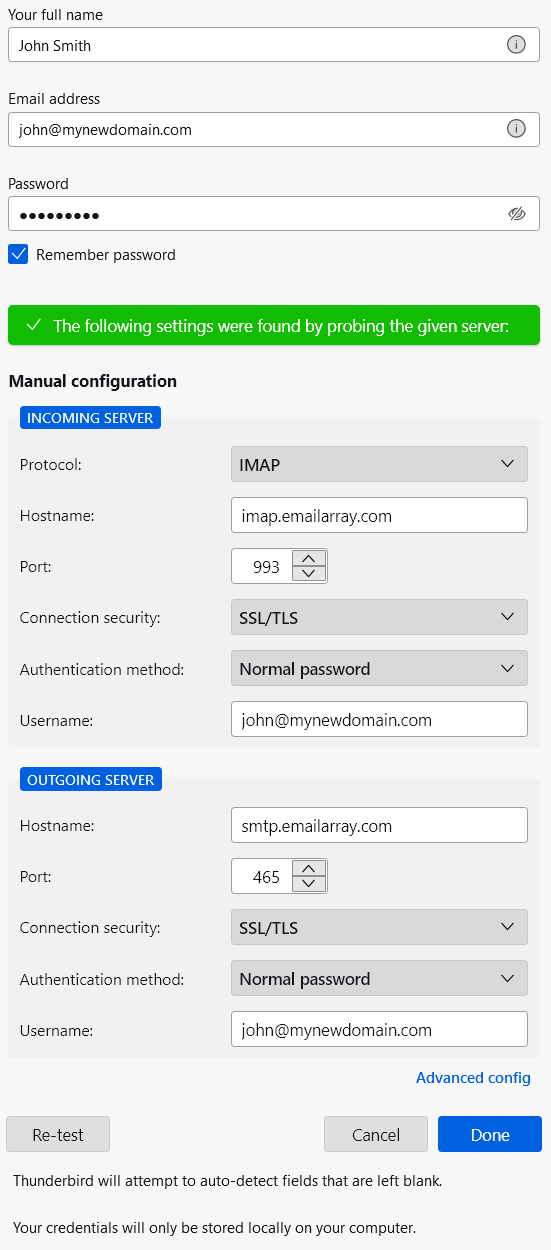
- Click Configure manually.
- Enter the following incoming settings:
- Protocol:
IMAP - Hostname:
imap.emailarray.com - Port:
993 - Connection Security:
SSL/TLS - Authentication Method:
Normal password - Username: your full email address
- Protocol:
- Enter the following outgoing settings:
- Protocol:
SMTP - Hostname:
smtp.emailarray.com - Port:
465 - Connection Security:
SSL/TLS - Authentication Method:
Normal password - Username: your full email address
- Protocol:
- Click Re-test.
- When Thunderbird verifies the settings, click Done.
After Setup
- Thunderbird will begin syncing your mailbox automatically.
- You can add a custom signature.
- If you have an Enhanced mailbox, you can also sync calendars with CalDAV and contacts with CardDAV.
