Email Setup: Android
Setup Email on Android (IMAP)
If you have an Enhanced mailbox, you can use ActiveSync to sync email, calendars, and contacts. If you only need email, use the IMAP steps below.
Android Mail App Setup
- Open Settings on your Android device.
- Go to Accounts or Manage Accounts.
- Tap Add account.
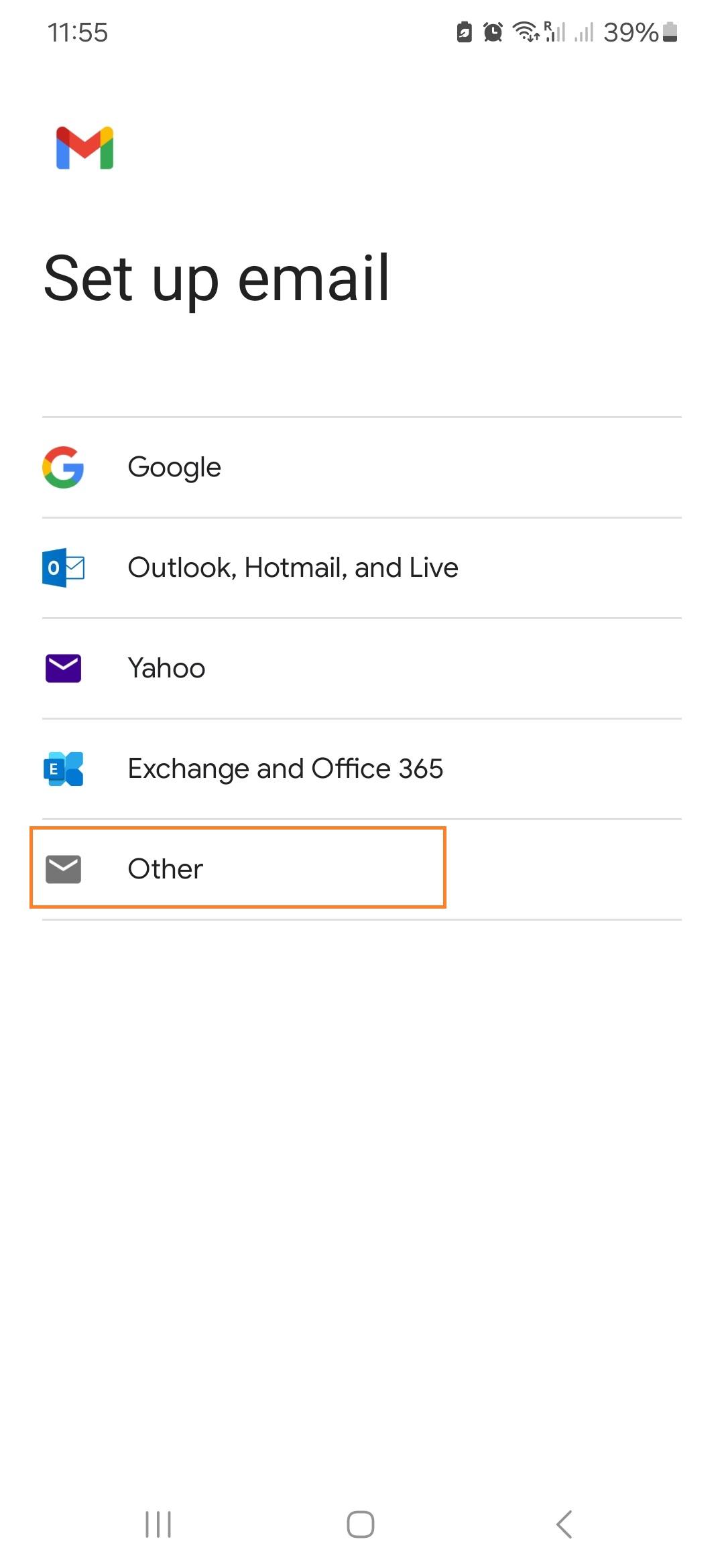
- Choose Email or Personal (IMAP).
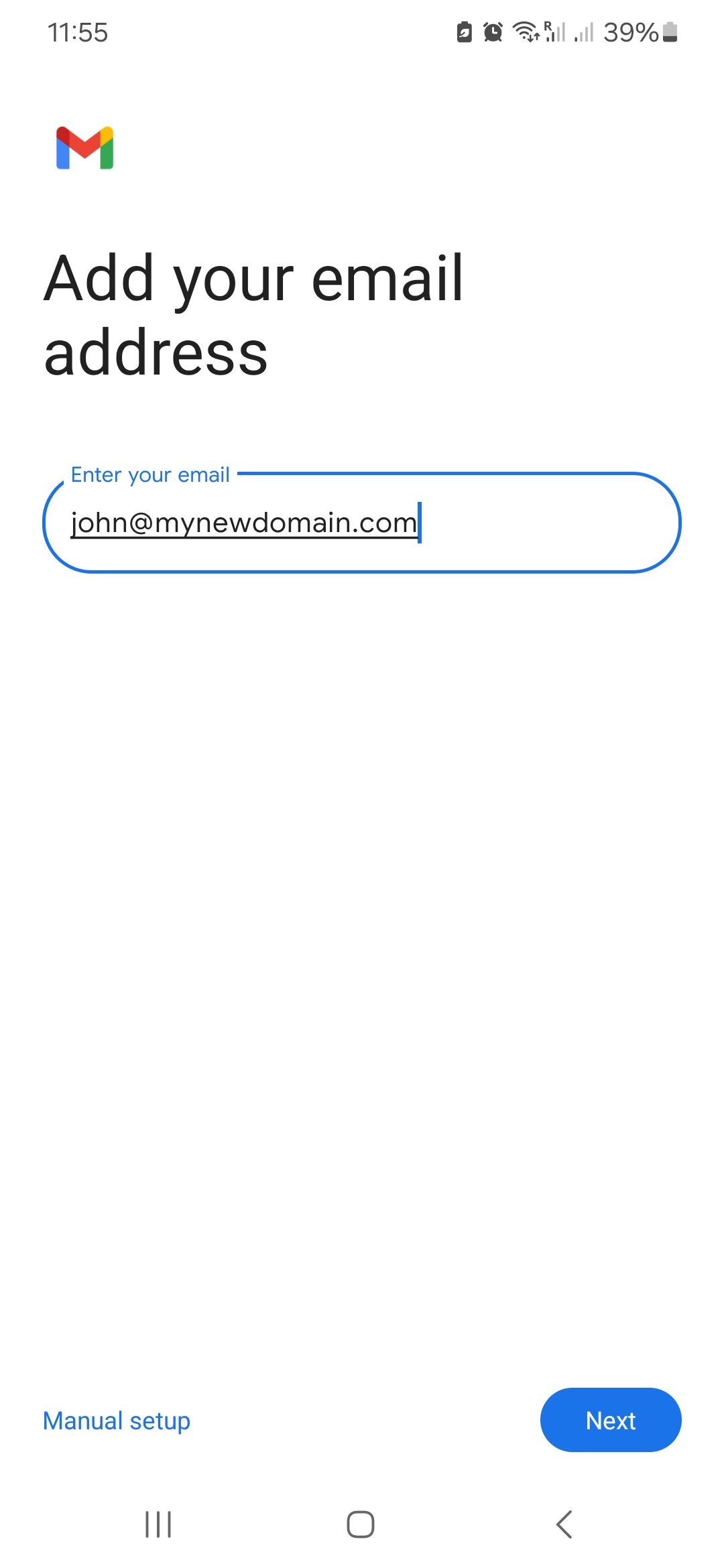
- Enter your full email address.
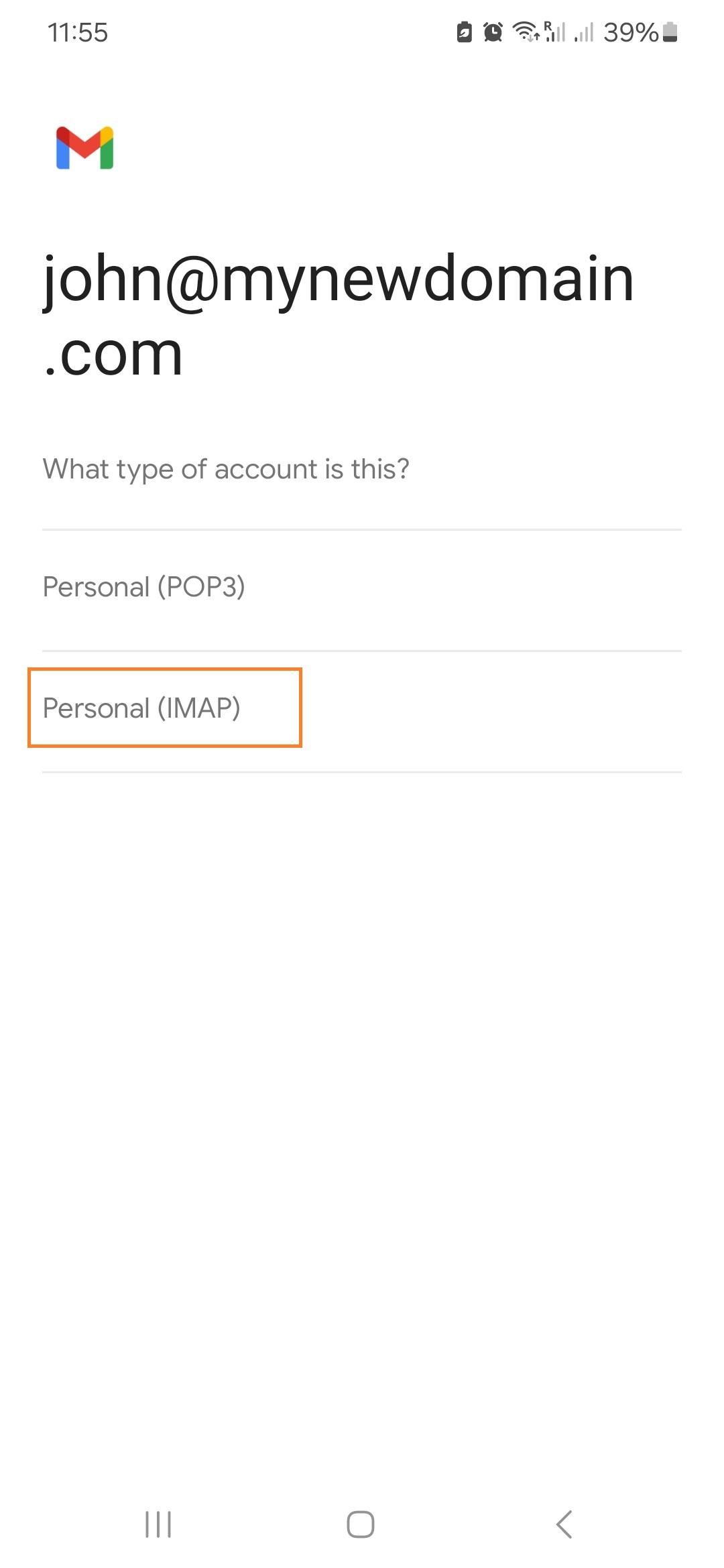
- If prompted, choose IMAP.
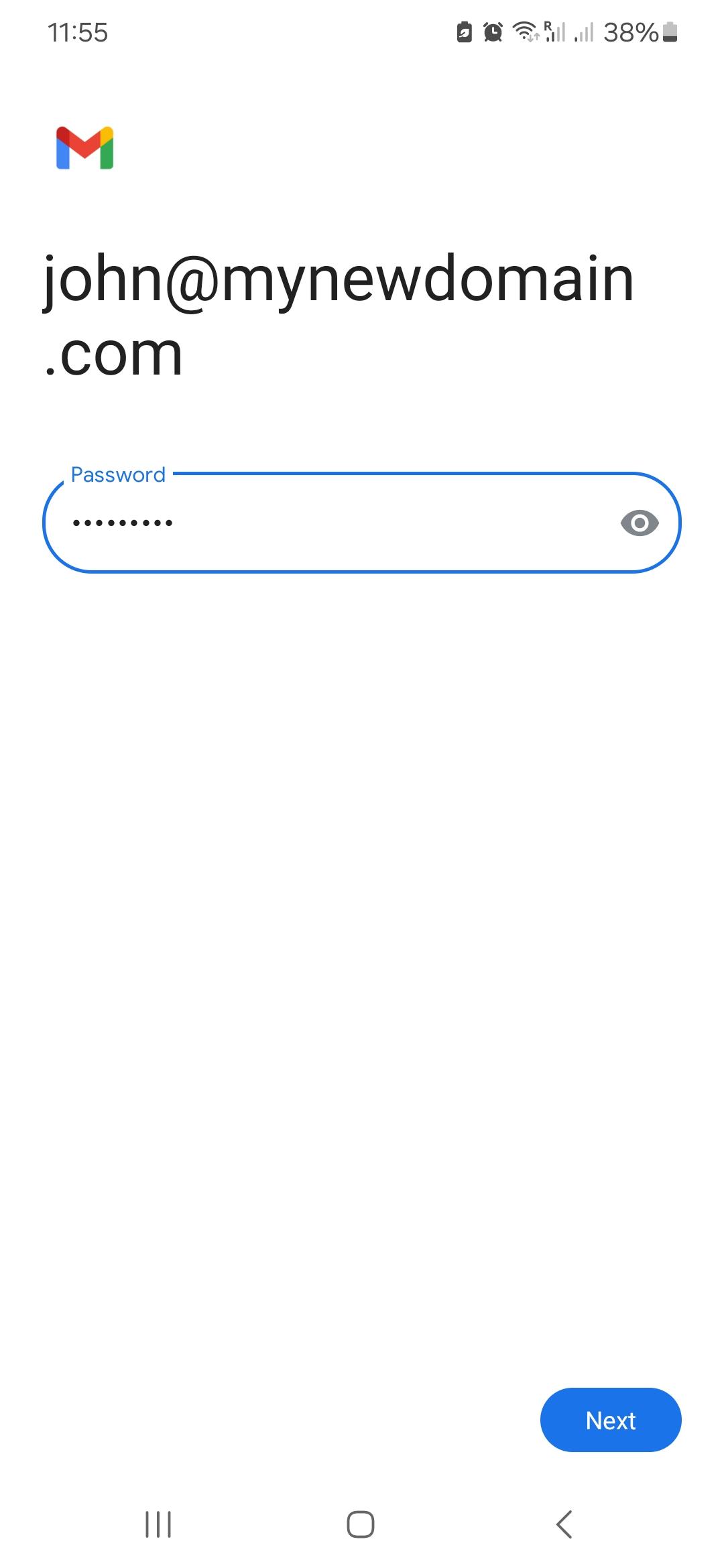
- Enter your mailbox password.
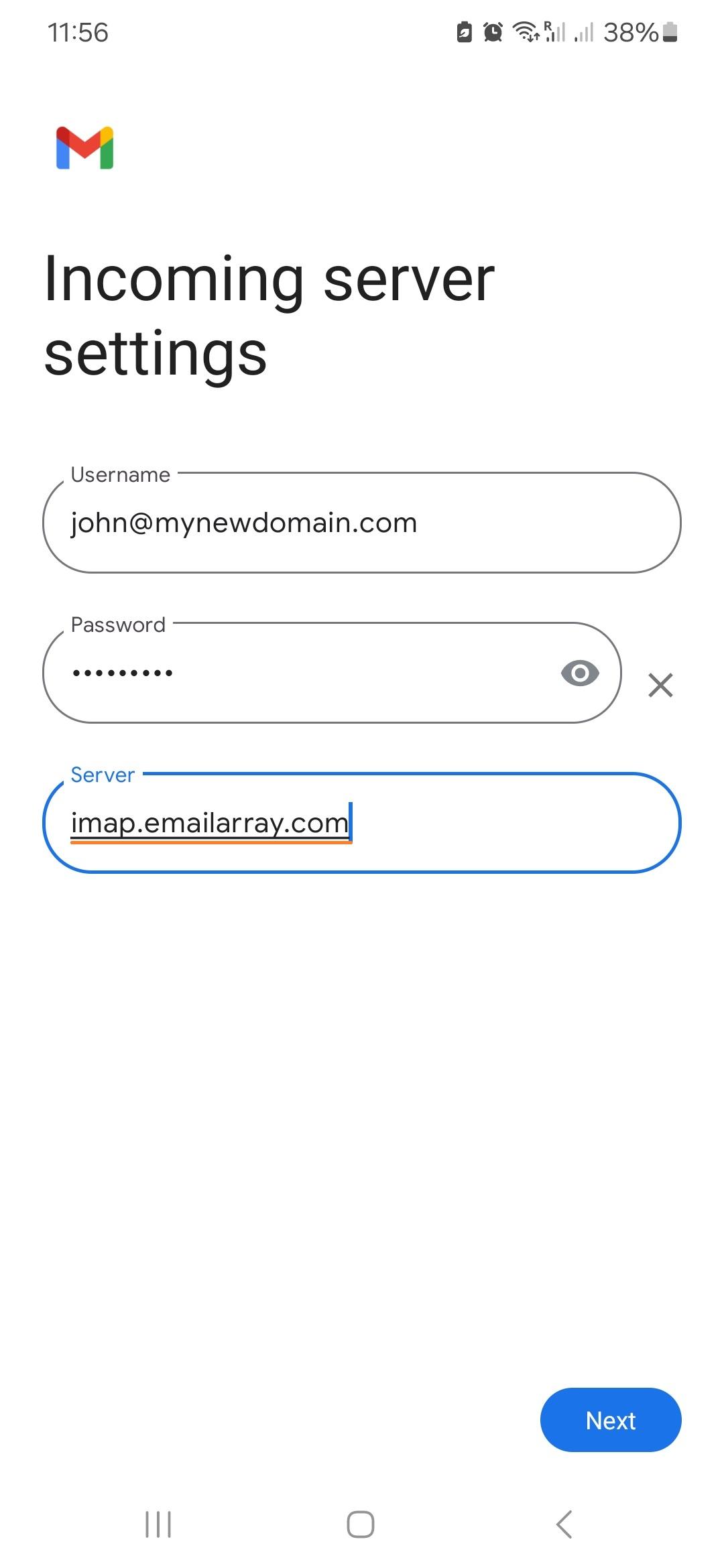
- For incoming mail, use:
- Server:
imap.emailarray.com - Username: your full email address
- Password: your mailbox password
- Security:
SSL/TLS - Port:
993
- Server:
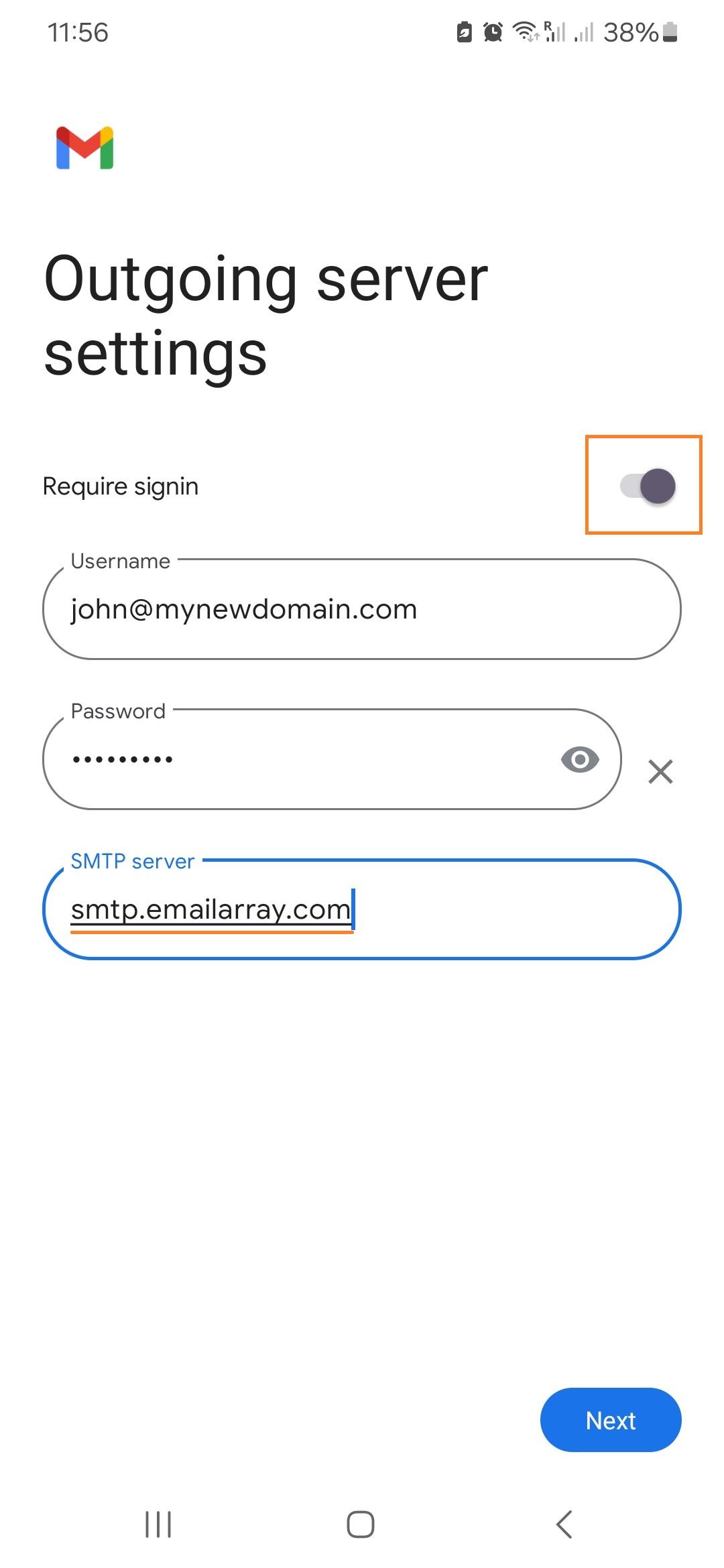
- For outgoing mail, use:
- SMTP server:
smtp.emailarray.com - Require sign-in:
Yes - Username: your full email address
- Password: your mailbox password
- Security:
SSL/TLS - Port:
465
- SMTP server:
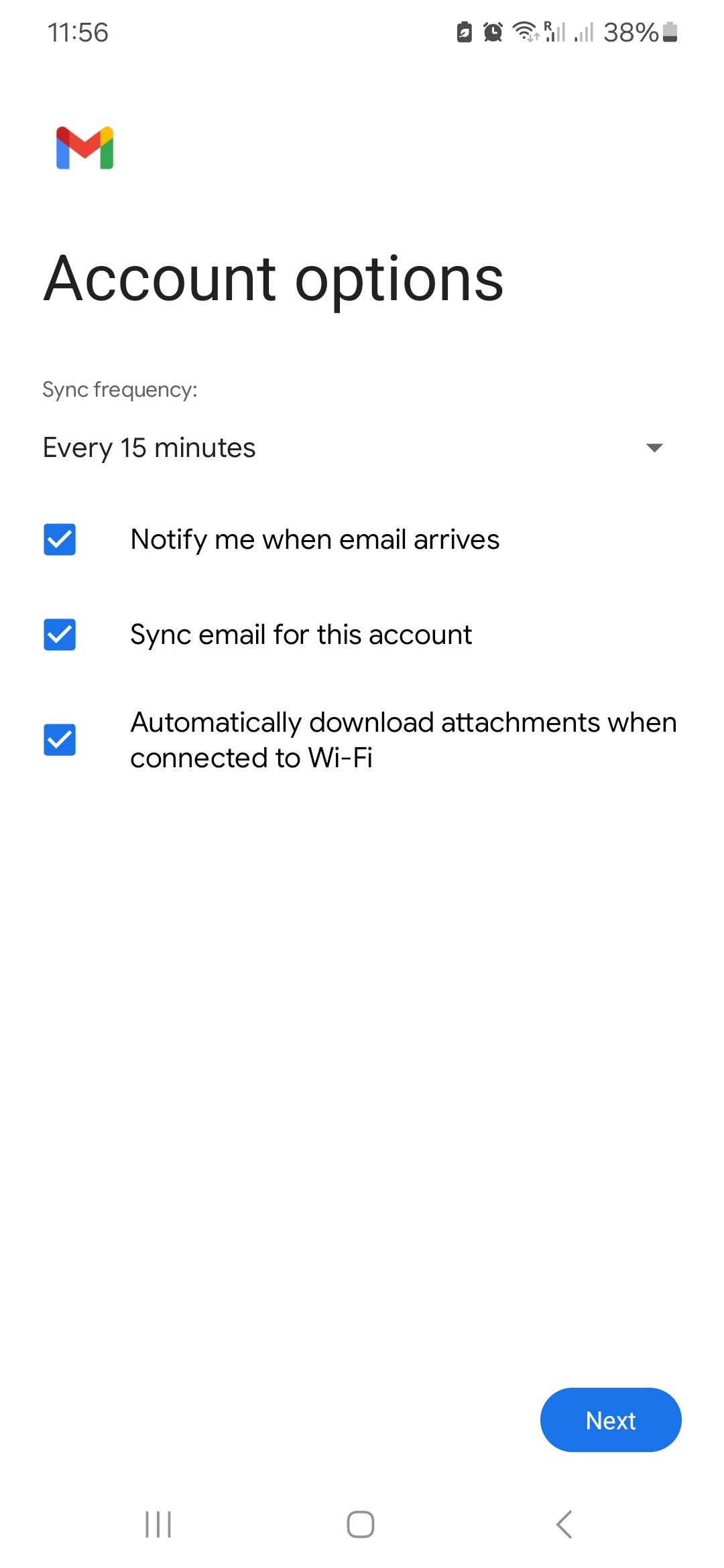
- Choose any sync and notification settings you want.
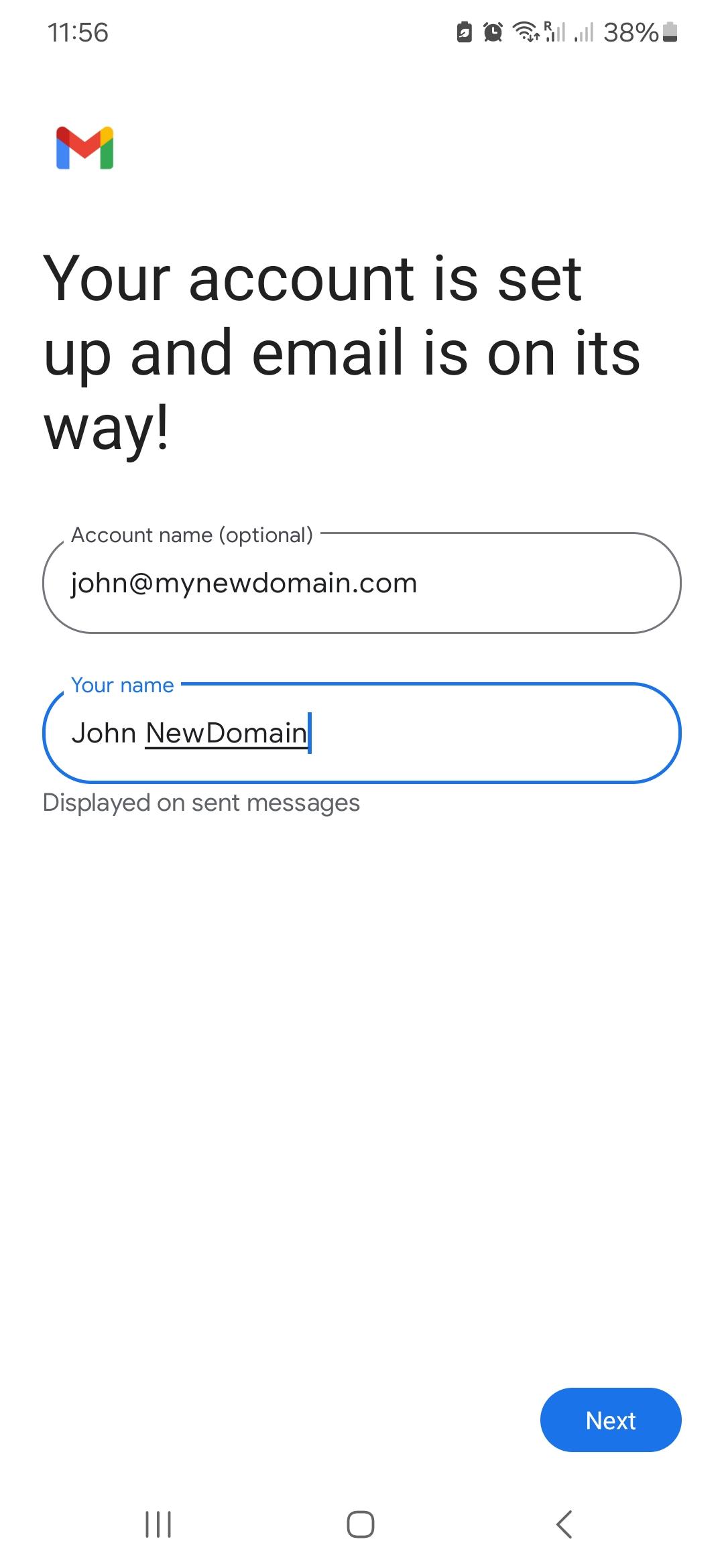
- Set the account name and sender name if prompted.
- Tap Next or Finish.
Tip: Some Android devices try to autofill the server name with your domain. Replace that with imap.emailarray.com and smtp.emailarray.com.
Example Setup on Android