Cherokee Communications

Email Setup: How to Change Your Password

Change Your Mailbox Password

Your mailbox password is the password you use to sign in to webmail and email apps like Apple Mail, Outlook, Thunderbird, or the mail app on your phone.

If you use this mailbox on other devices, update the saved password on each device after you change it. Otherwise, those apps may stop sending or receiving mail until the new password is entered.

Password Requirements

Your password must include:

  • At least 8 characters
  • At least one uppercase letter
  • At least one lowercase letter
  • At least one number
  • At least one special character such as , . / ! @ # $ % ^ & *

1. Change Your Mailbox Password from Webmail

To change your mailbox password in webmail:

  1. Sign in to GroupOffice Webmail using your full email address and current password.
  2. Click the User icon in the top-right corner.
  3. Click My account.
Webmail - access account settings
  1. Open the Account tab.
  2. In the Password section, enter your new password.
  3. Confirm the new password.
  4. If you want, click the Refresh arrow icon to generate a strong password.
  5. Click Update password and log me out from everywhere.
  6. Sign back in using your new password.
Webmail - update mailbox password

2. Change Your Mailbox Password from the User Panel

You can also change your mailbox password from the User Panel.

  1. Go to the User Panel.
  2. Sign in using your full email address and current mailbox password.
  3. Click the Password icon.
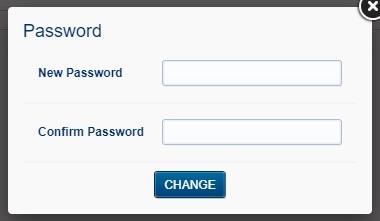
  4. Enter your new password.
  5. Confirm the new password.
  6. Click Change.
User Panel - mailbox password page
User Panel - change mailbox password form

Access the User Panel from Webmail

You can also open the User Panel directly from inside webmail:

  1. In GroupOffice Webmail, click the User icon.
  2. Open User Settings.
  3. You will be signed in to the User Panel automatically.
Webmail - access the User Panel

Return to Help Center